
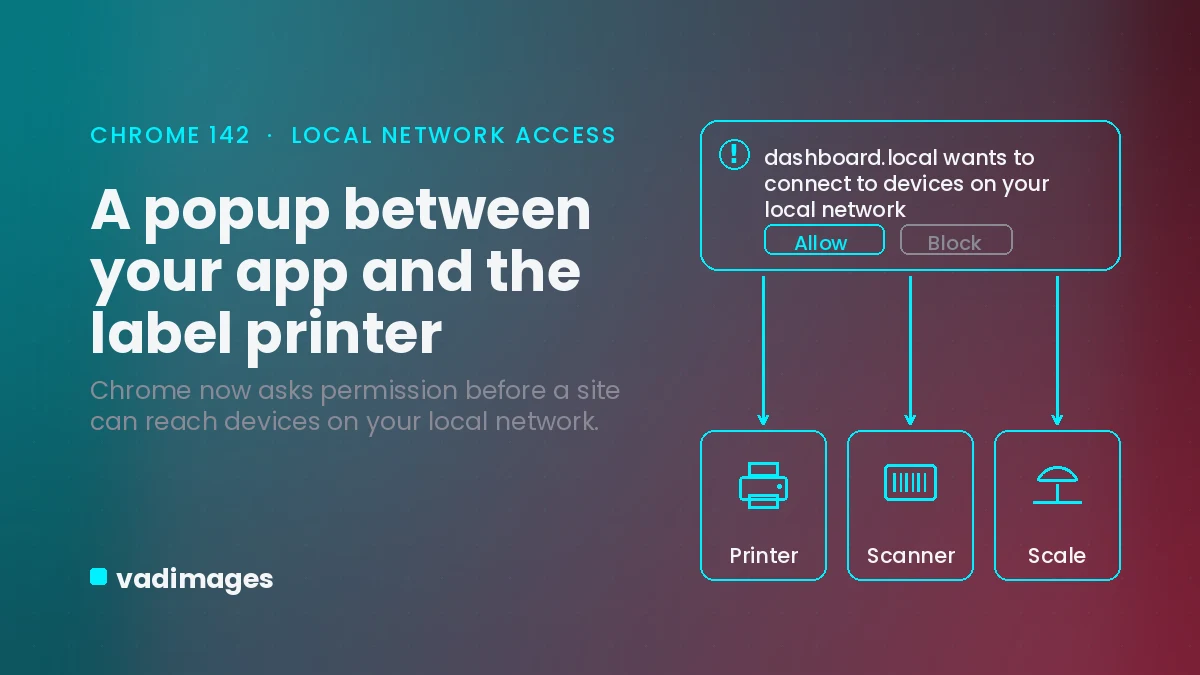
If your warehouse runs on a browser, picture this: an operator scans a carton, the dashboard weighs it, and a shipping label slides out of a printer three feet away — all without leaving Chrome. That printer, that scanner, and that scale live on the same local network as the workstation, and your web app talks to them directly. A change rolling out in Chrome is about to put a permission popup between your dashboard and every one of those devices. Get ahead of it and nobody on the floor notices. Ignore it and, one Chrome update later, labels stop printing, scans stop registering, and the line backs up right at your carrier cutoff.
What is actually changing in Chrome
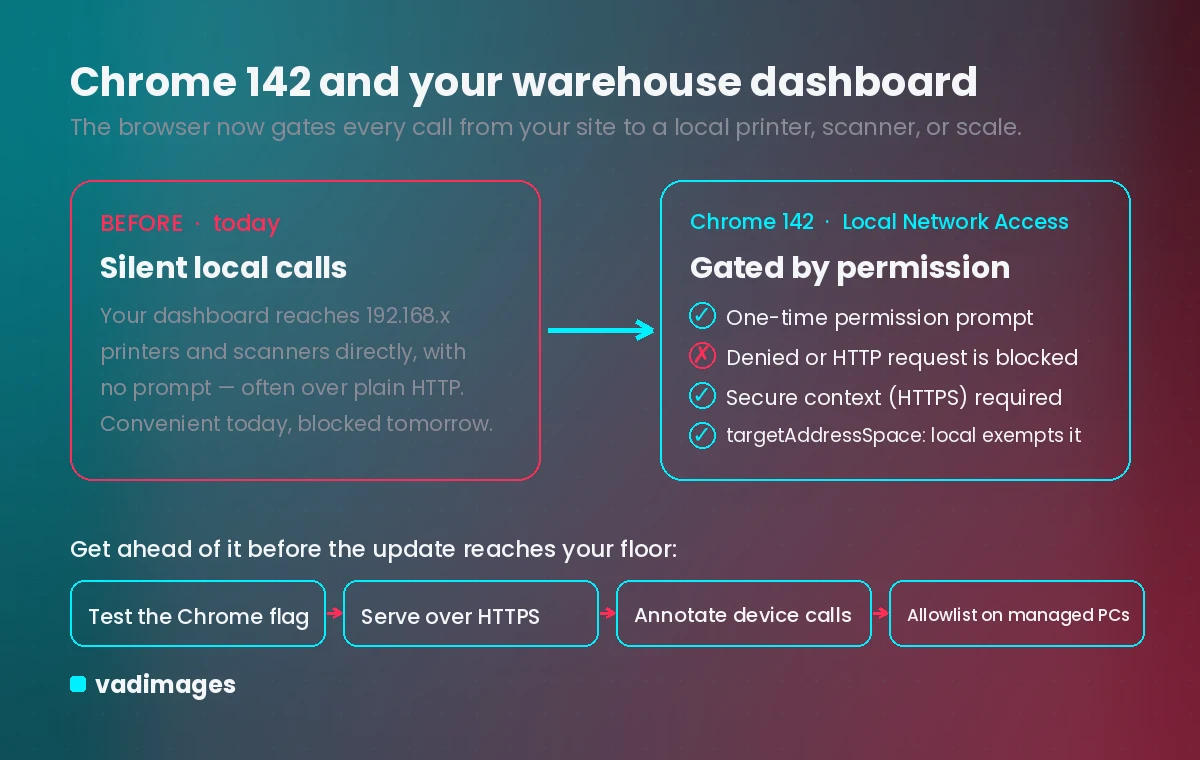
Chrome is adding a Local Network Access (LNA) permission, launching in Chrome 142. When a public website tries to reach a device or server on the user’s local network — a private address like 192.168.x.x, a link-local address, or loopback/localhost — Chrome now blocks that request until the user grants explicit permission. The prompt reads roughly “Look for and connect to any device on your local network.” Google’s goal is security: stopping malicious sites from quietly attacking routers and office devices (cross-site request forgery) or fingerprinting what is on your network. LNA replaces the earlier Private Network Access experiment, which was put on hold. One more rule matters for warehouse apps: the permission can only be requested from a secure context, meaning your dashboard must be served over HTTPS. You do not have to guess how it behaves — teams can turn it on today at chrome://flags#local-network-access-check by setting it to “Enabled (Blocking).”
What happens if you do nothing
For a US fulfillment operation, the failure mode is loud and physical. The moment Chrome 142 reaches your workstations, every operator hits a permission popup the first time the dashboard talks to a printer, scanner, or scale. Anyone who clicks the wrong button — or who was trained to “dismiss popups” — denies access, and label printing and device reads silently fail. It gets worse if your dashboard reaches those devices over plain HTTP from an HTTPS page: those calls are treated as mixed content and blocked unless you flag them correctly. Requests fired from a service worker fail too, until the permission has already been granted through the page. None of this surfaces as a clean error to the operator — it shows up as a label that never prints and a truck that leaves without the carton. In a business measured in carrier cutoffs and on-time SLAs, a half-day of “the scanners stopped working” across every station is real money and real chargebacks.
What you and your customers gain by acting
Handled properly, the prompt appears once, the operator clicks allow, and the workstation just works — quietly, over HTTPS, with the security benefit Chrome intended. For the people downstream, that means orders keep flowing: labels print, scans land, and the tracking number your customer keeps refreshing actually updates on time. Moving your device calls to secure connections also closes a real gap — the same local endpoints that printed labels were often wide open over HTTP — so you end up with a faster, safer floor and a dashboard that will not be the thing that breaks on the next browser update.
What to do on your own dashboard
You do not have to wait for Chrome 142 to learn what breaks:
- Test now: on a spare machine, set chrome://flags#local-network-access-check to “Enabled (Blocking)” and run a real pick-pack-ship flow. Every device call that pops a prompt is one you need to handle.
- Serve the dashboard over HTTPS. The permission can only be requested from a secure context, so an HTTP-only internal tool needs a certificate first.
- Keep the mixed-content exemption: address devices by a private IP literal (192.168.x.x) or a .local hostname, or annotate the request with fetch(url, { targetAddressSpace: "local" }), so an HTTP device call from your HTTPS page is not blocked.
- Trigger the prompt on purpose with clear UX — a “Connect printer” button and a one-line explanation — instead of letting it ambush operators mid-shift.
- On managed devices, have IT pre-approve your dashboard’s URL with Chrome’s Local Network Access enterprise policy so no operator ever sees the prompt.
- Mind the gaps: WebSocket, WebTransport, and WebRTC connections are not gated yet but are on Chrome’s roadmap, and service-worker device calls need the permission granted from the page first — plan for both.
Your quick-win checklist
A 20-minute self-check before the update reaches your floor:
- Inventory every local device your dashboard touches: label and thermal printers, barcode scanners, scales, cash drawers, RFID readers.
- Confirm each workstation loads the dashboard over https:// — not http:// or a bare IP without a certificate.
- Search your frontend for calls to 192.168.*, 10.*, localhost, or 127.0.0.1 and list every endpoint that will trip LNA.
- Add targetAddressSpace: "local" (or switch to a .local hostname) on each of those calls.
- Write one clear “device not connected” fallback so a denied prompt guides the operator instead of failing silently.
- Ask IT whether your fleet is managed — if so, ship the allowlist policy before Chrome 142, not after.
How Vadimages helps
This is our lane: the web dashboards and portals that run modern logistics and fulfillment operations, and the integration layers that connect them to the hardware and carriers around them. We build and harden the browser-based apps your team lives in — pick-pack-ship dashboards, 3PL and customer tracking portals, yard and dock tools — and we make their local-device connections resilient to changes like this one: moving device endpoints to HTTPS, adding the Local Network Access annotations, designing the connect-device UX so operators are never blindsided, and handing your IT team the exact allowlist settings to push. If you would rather meet the floor where it is, we also build native and cross-platform mobile apps for scanning and label printing that sidestep browser restrictions entirely. Either way, you get software that keeps printing labels the morning Chrome 142 lands.
Bottom line
Local Network Access arrives in Chrome 142, and it puts a permission prompt between any website and the printers, scanners, and scales on your local network. Test it today with the Chrome flag, move your dashboard to HTTPS, annotate your device calls, and pre-approve the site on managed machines — and the update becomes a non-event. Skip it, and you risk a floor full of workstations that stop printing at the worst possible moment.