
Why a website backup is the cheapest insurance you will ever buy
Most business owners think about their website the way they think about the roof: it is there, it works, and nobody checks on it until water comes through the ceiling. Then one morning the site is blank, or hacked, or an update broke the checkout, and the only question that matters is: how fast can we get back to the way it was yesterday?
That answer comes down to one thing: whether you have a recent, tested, separate copy of your website. A website backup is that copy. It is not glamorous, it does not bring in a single new lead, and it is usually the first thing skipped when budgets get tight. It is also the difference between a bad afternoon and a bad month.
This guide explains, in plain English, what a backup actually contains, how often you need one, where it should be stored, and how to check that yours would really work when you need it. If you would rather have someone own all of this for you, we cover that near the end.
What can actually go wrong
Backups sound abstract until you list the ways a site fails. None of these are exotic. They are the everyday reasons a business site goes down or loses data:
- A bad update. A plugin, theme, or framework update conflicts with something else and the site breaks or the checkout stops working.
- A hack or malware infection. Outdated software, a weak password, or a vulnerable plugin lets someone in. Cleaning up is much easier when you can compare against a known-good copy.
- Human error. Someone deletes the wrong page, overwrites a file, or edits a template and saves over the working version.
- Hosting failure. A server crashes, a provider has an outage, or an account is suspended. If your only copy lived on that server, it can be gone with it.
- Database corruption. Orders, form submissions, and customer accounts live in the database. If it gets damaged, the pages may look fine while the data underneath is missing.
- Ransomware and accidental lockouts. If an attacker can reach your hosting account, they can sometimes reach your backups too, unless those are stored somewhere else.
In every one of these cases, the fix is the same: restore from a clean copy. Without one, the fix is rebuilding from scratch, which costs far more than the backup would have.
What a complete backup includes
A common mistake is assuming a backup means "a copy of the files." A website is usually several pieces that have to be restored together, and a backup that misses one of them may leave you with a site that loads but does not work.
- Website files: the code, themes, templates, and configuration that make the site look and behave the way it does.
- The database: your content, user accounts, orders, form entries, and settings.
- Uploaded media: product photos, PDFs, videos, and every image in your library.
- Configuration and environment details: DNS records, redirects, SSL settings, scheduled jobs, and any API keys or integrations, documented somewhere safe.
- Email and third-party connections: if your forms feed a CRM or your store syncs with accounting software, you need to know how those connections were set up.
If your site is a static site with no database, the backup is simpler: usually the source code in version control plus the media. If it is a custom application or a store, the database is the part you can least afford to lose, because it holds everything that changed since the last time anyone touched the code.
The 3-2-1 rule, without the jargon
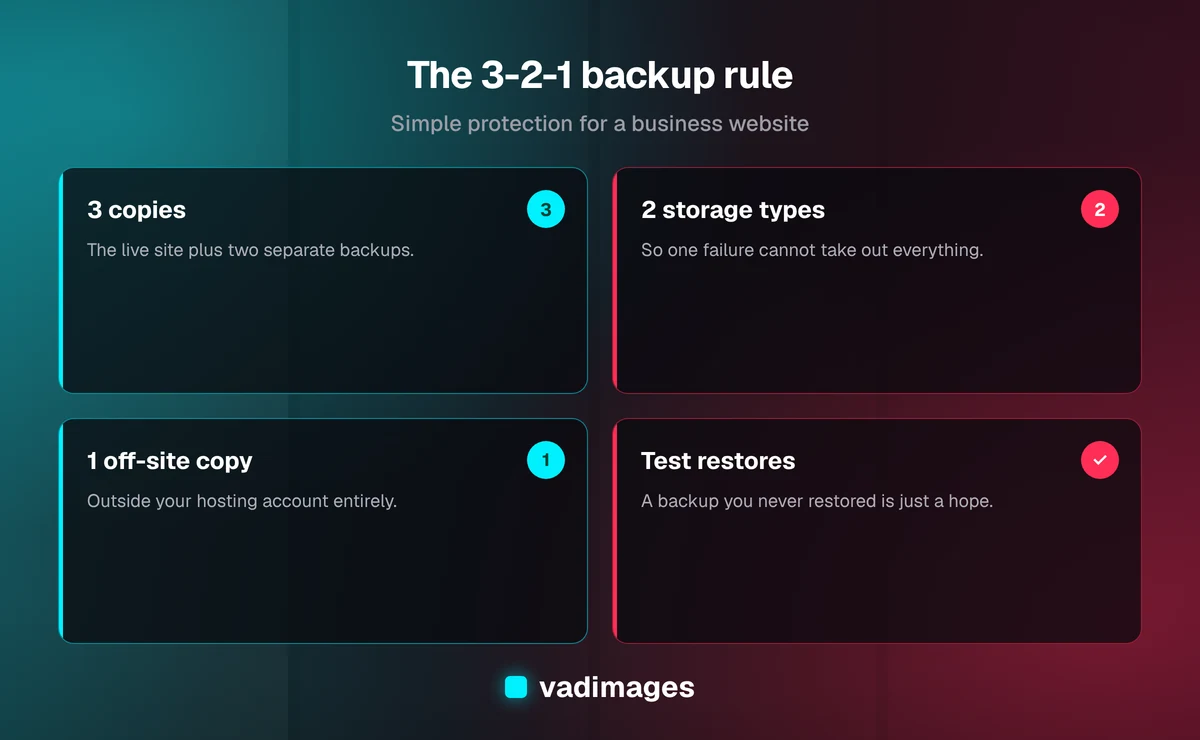
The most widely used backup guideline is called the 3-2-1 rule. It is simple enough to remember and strong enough to cover most small business situations:
- 3 copies of your data: the live site plus two backups.
- 2 different types of storage, so one failure does not take out everything.
- 1 copy off-site, meaning somewhere that is not on the same server or in the same hosting account as the live site.
The off-site part is the one most people miss. Many hosting plans include a daily backup, and that is better than nothing, but it usually sits in the same account and on the same infrastructure as the site. If the account is compromised or suspended, the backup can disappear with it. A real insurance policy lives somewhere the original problem cannot reach.
How often should you back up?
The right schedule depends on one question: how much new information can you afford to lose? Whatever has changed since the last backup is what you lose if you restore from it.
- Brochure site that changes a few times a month: a daily backup is plenty, with an extra one before every update or edit session.
- Blog or content site: daily, plus a copy before any major publishing push or redesign.
- E-commerce or booking site: the database changes constantly, so it needs more frequent backups, and in many cases continuous or near-real-time protection for orders.
- Custom web application with customer data: frequent database backups, point-in-time recovery where possible, and a documented recovery plan.
Two related terms are worth knowing. Your recovery point is how much recent data you can afford to lose, and your recovery time is how long you can afford to be down. A restaurant with online ordering feels both much more sharply than a consultant with a five-page site, and the backup plan should reflect that.
Where backups should live
Good storage choices share a few traits: they are separate from your hosting account, they are access-controlled, and they keep more than one version. Here is how the common options compare:
- Your host's built-in backups: convenient and often automatic, but usually limited in retention and tied to the same account. Treat them as a first layer, not the only one.
- Cloud object storage: a separate provider, inexpensive, and easy to automate. This is the workhorse for most business sites.
- Version control for code: a repository gives you a full history of every change, which is excellent for the code but does not cover the database or uploaded media on its own.
- A local or offline copy: a periodic copy on a drive you control is a useful last resort, as long as it is stored securely and not forgotten.
Whatever you choose, encrypt backups that contain customer data and limit who can open them. A backup full of customer records is a liability if it is left in an open folder.
Keep more than one version
A backup that overwrites itself every night has a hidden weakness: if the problem is not noticed for three days, every copy you have is already broken. That is why a healthy plan keeps a history, often called retention.
A sensible pattern for many small business sites is to keep recent daily copies, a handful of weekly copies, and a few monthly copies. That way you can go back a day, a week, or a month, depending on when the issue started. Quietly corrupted files, slow-moving malware, and accidental deletions that nobody noticed are exactly the problems retention protects against.
The step everyone skips: test the restore
A backup you have never restored is a hope, not a plan. Backup jobs can fail silently, produce empty files, or miss the database entirely, and you will not find out until the day you need them.
Testing does not have to be elaborate. A practical routine looks like this:
- Restore the latest backup to a separate staging copy, not the live site.
- Open the site and click through the pages that matter: home, contact form, checkout or booking flow, and login.
- Confirm that recent content, orders, and form entries are present.
- Write down how long the whole process took, and who did what.
- Repeat on a schedule, such as quarterly, and after any major change to the site or hosting.
The written notes matter more than they seem. In a real emergency people are stressed and the person who set everything up may not be available. A one-page recovery checklist turns a scramble into a procedure.
Backups, security, and updates work together
A backup does not prevent problems. It limits the damage when prevention fails. The strongest setups combine it with the basics: keep software and dependencies up to date, use strong unique passwords with two-factor authentication, limit admin access to the people who need it, and monitor the site so you hear about problems before your customers do.
There is also a useful habit that costs nothing: take a fresh backup immediately before any update, migration, or redesign launch. It is the moment you are most likely to need one, and it gives you a clean rollback point if something goes sideways.
If you have ever put off updates because you were afraid of breaking the site, a reliable backup is what removes the fear. You can update confidently when you know you can undo it.
A quick self-check for your own site
Take five minutes and answer these honestly. Each "no" is a gap worth closing:
- Do you know exactly how often your site is backed up, and when the last one ran?
- Does the backup include both the files and the database?
- Is at least one copy stored outside your hosting account?
- Do you keep several past versions, not just the latest one?
- Has anyone actually restored a backup in the last year?
- Is there a written recovery checklist, and does more than one person know where it is?
- Are backups that contain customer data encrypted and access-controlled?
If you answered "I'm not sure" to most of those, you are in good company. It is the most common answer we hear, and it is easy to fix.
What it costs to get this right
Backup storage itself is inexpensive. The real cost is the setup, the monitoring, and the discipline of testing, which is why it often gets neglected. For a typical small business site, a proper off-site, versioned, tested backup setup is a small line item compared with the cost of rebuilding or the revenue lost during an outage.
Our custom website and software projects start at $5,000+, and we are open about what is included. Backup and recovery planning is part of how we hand a site over, and ongoing maintenance and support can keep it running afterward. You can see how we price and structure work on our pricing page and how projects run on how we work.
Where Vadimages fits in
We build and maintain custom websites and software for small and mid-sized businesses across the US from our base in Vancouver, WA. For the sites we look after, we treat backups as part of the foundation rather than an add-on: automated schedules, off-site storage, retained versions, and a documented restore process, tested on a regular basis.
Different industries have different stakes. A service business may mostly care about its contact forms and booking requests, while a store lives and dies by its order data. If you want to see how we approach it for your sector, browse our industries and solutions, or look at examples in our case studies.
The bottom line
You do not buy insurance because you expect a disaster. You buy it so a disaster is an inconvenience rather than the end of the story. A website backup works the same way: keep complete copies, keep them away from the live site, keep several versions, encrypt what is sensitive, and test the restore before you need it.
If you are not sure your site would survive a bad day, the next step is a short conversation. Contact us and we will tell you plainly where your site stands and what it would take to protect it.